Step 4: Access ControlBird
Open your hub and get familiar with the interface.
Opening Your Hub
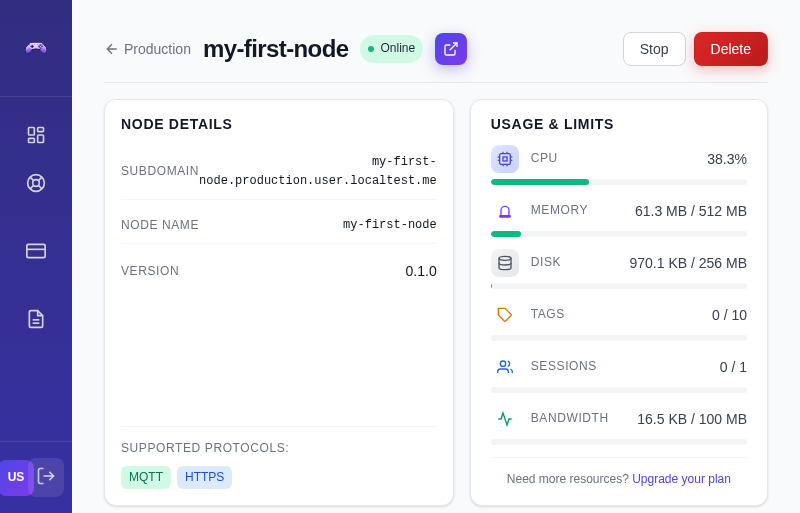
From the Control Plane, find your running node and click the "Open" button. ControlBird opens in a new browser tab.
Logging In
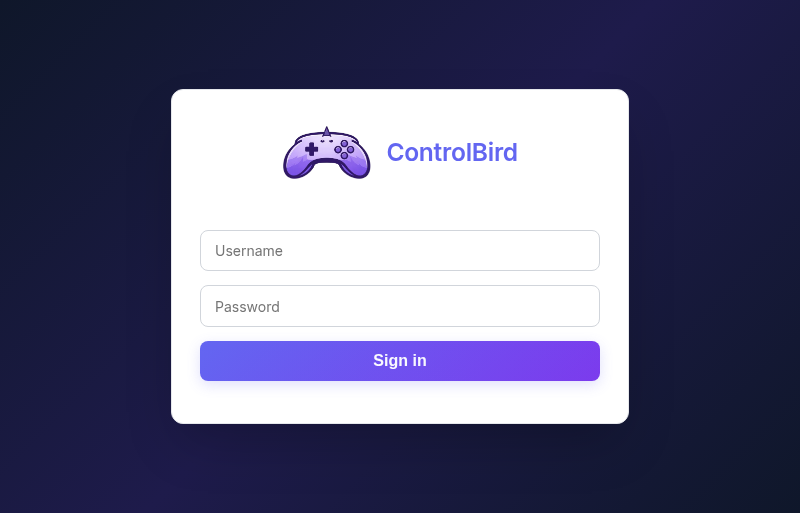
ControlBird uses the same login as the Control Plane. In most cases, you'll be automatically logged in. If you see a login screen:
- Control Plane Login: Click this button to use your existing account
- Manual Login: For advanced setups with separate credentials
Your ControlBird Desktop
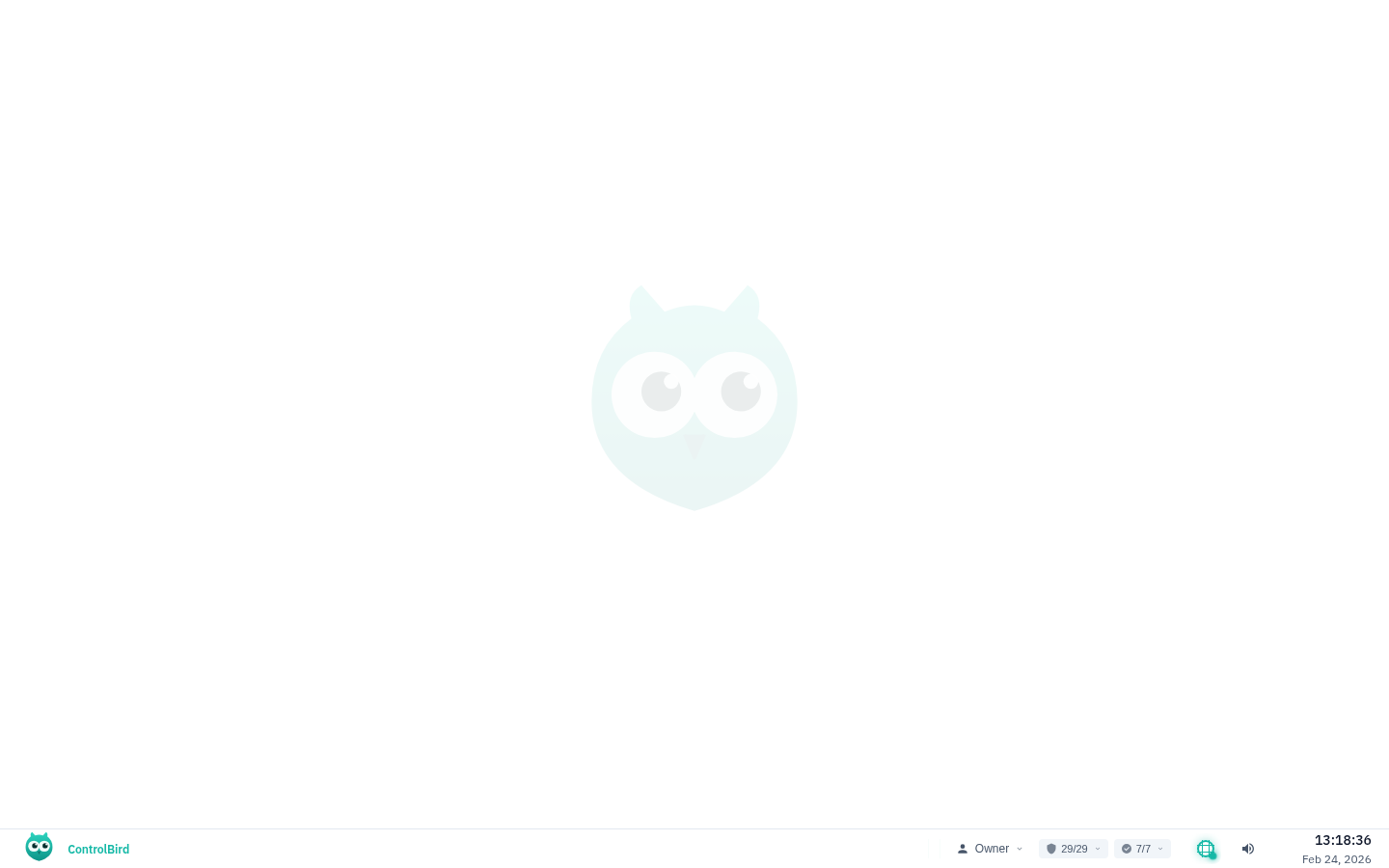
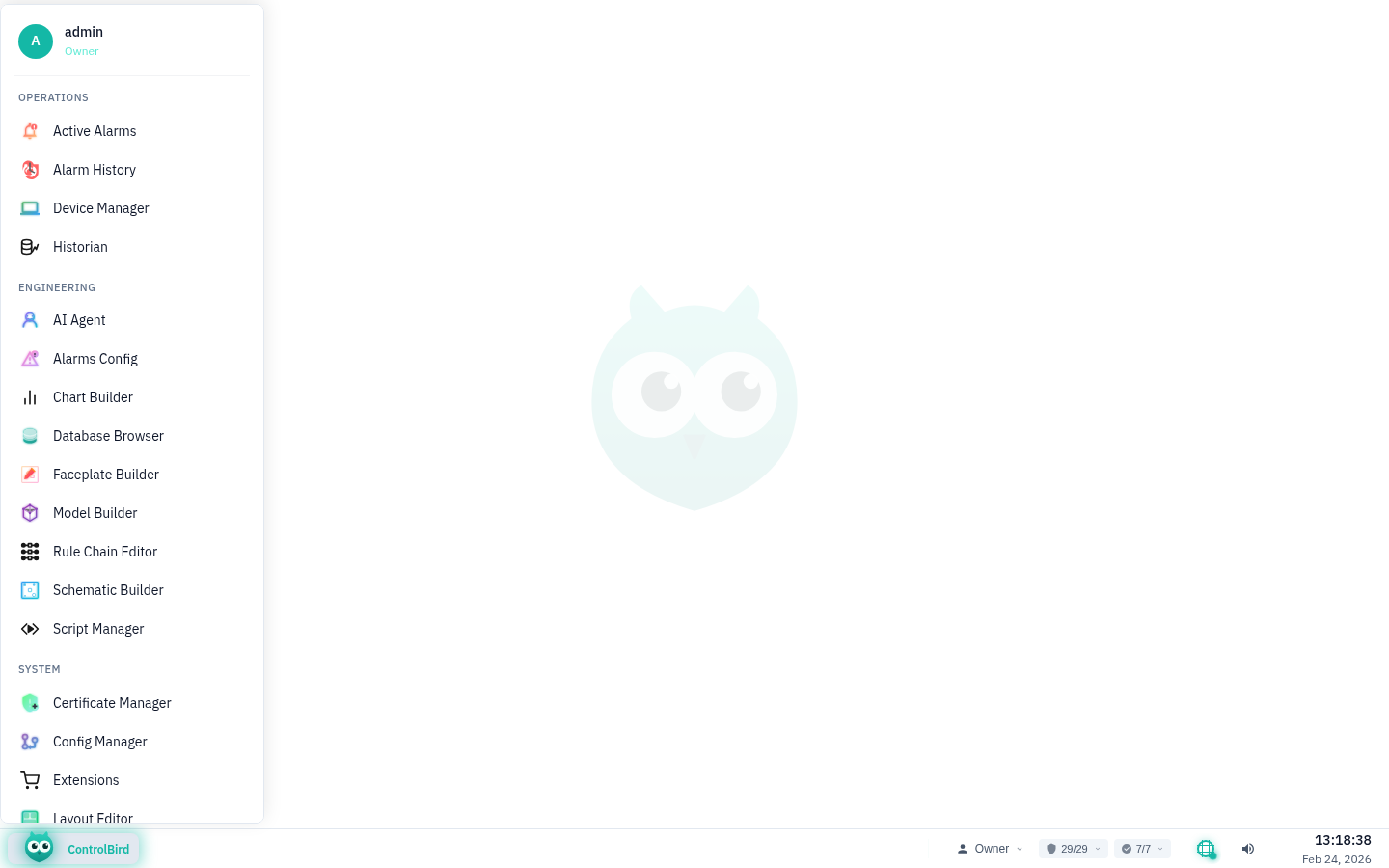
After logging in, you'll see the ControlBird desktop. It's designed to feel familiar, like a computer desktop, but for managing your smart home devices.
Works in Your Browser
ControlBird runs entirely in your web browser. No software to install: open it and start managing your devices from any computer or tablet.
Finding Your Way Around
Start Menu
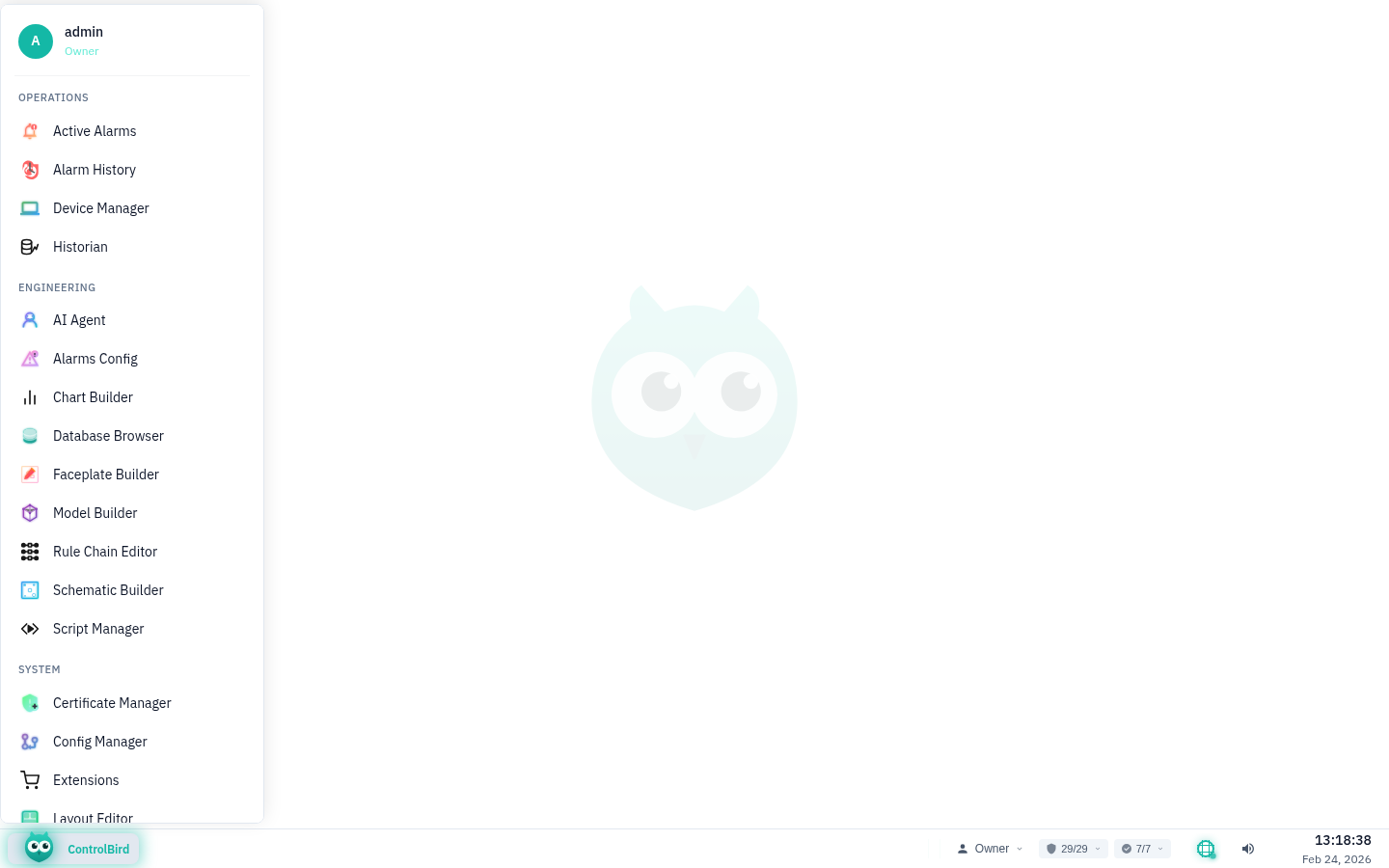
Click the ControlBird logo in the bottom-left corner to open the Start Menu. This is where you'll find all the apps:
- Device Manager: Connect new devices and check their status
- Database Browser: See all your devices and their current values
- Faceplate Builder: Create custom dashboards and controls
- Permissions Manager: Control who can access what
Taskbar
The taskbar at the bottom shows:
- Open apps: Click to switch between them
- Connection status: Shows if you're connected to your devices
- User menu: Settings, help, and logout
Troubleshooting
The hub won't open or loads very slowly
Check these common causes:
- Make sure your node status is "Running" (green) in the Control Plane
- Try a different browser or disable browser extensions
- Check your internet connection: ControlBird requires a stable connection
- If the node just started, wait 30-60 seconds for it to fully initialize
SSO login keeps failing
Single Sign-On issues are usually caused by:
- Pop-up blockers: Allow pop-ups for the ControlBird domain
- Third-party cookies: Some browsers block these by default; try allowing them for this site
- Session timeout: Log out of Control Plane and log back in, then try opening the hub again
The desktop appears blank or shows errors
A blank desktop usually means the interface failed to load. Try these fixes:
- Hard refresh the page (Ctrl+Shift+R or Cmd+Shift+R)
- Clear your browser cache for this site
- Check the browser console (F12) for specific error messages
If problems persist, the node may need to be restarted from the Control Plane.