Step 13: Write Custom Scripts
Extend ControlBird with JavaScript programs for advanced automation logic.
Beyond Visual Automation
Rule Chains handle straightforward logic well, but sometimes you need more: complex calculations, API integrations, or custom business rules that don't fit neatly into a flowchart.
ControlBird's Script Engine lets you write JavaScript programs that run directly on your node. Scripts can read and write to any entity, respond to changes, and execute on schedules.
- Visual, no-code approach
- Great for simple triggers
- Easy to understand at a glance
- Limited to predefined nodes
- Full programming flexibility
- Complex calculations
- External API calls
- Requires JavaScript knowledge
Opening the Script Manager
Click the ControlBird logo in the taskbar and select Script Manager. You'll see a list of existing programs and can create new ones.
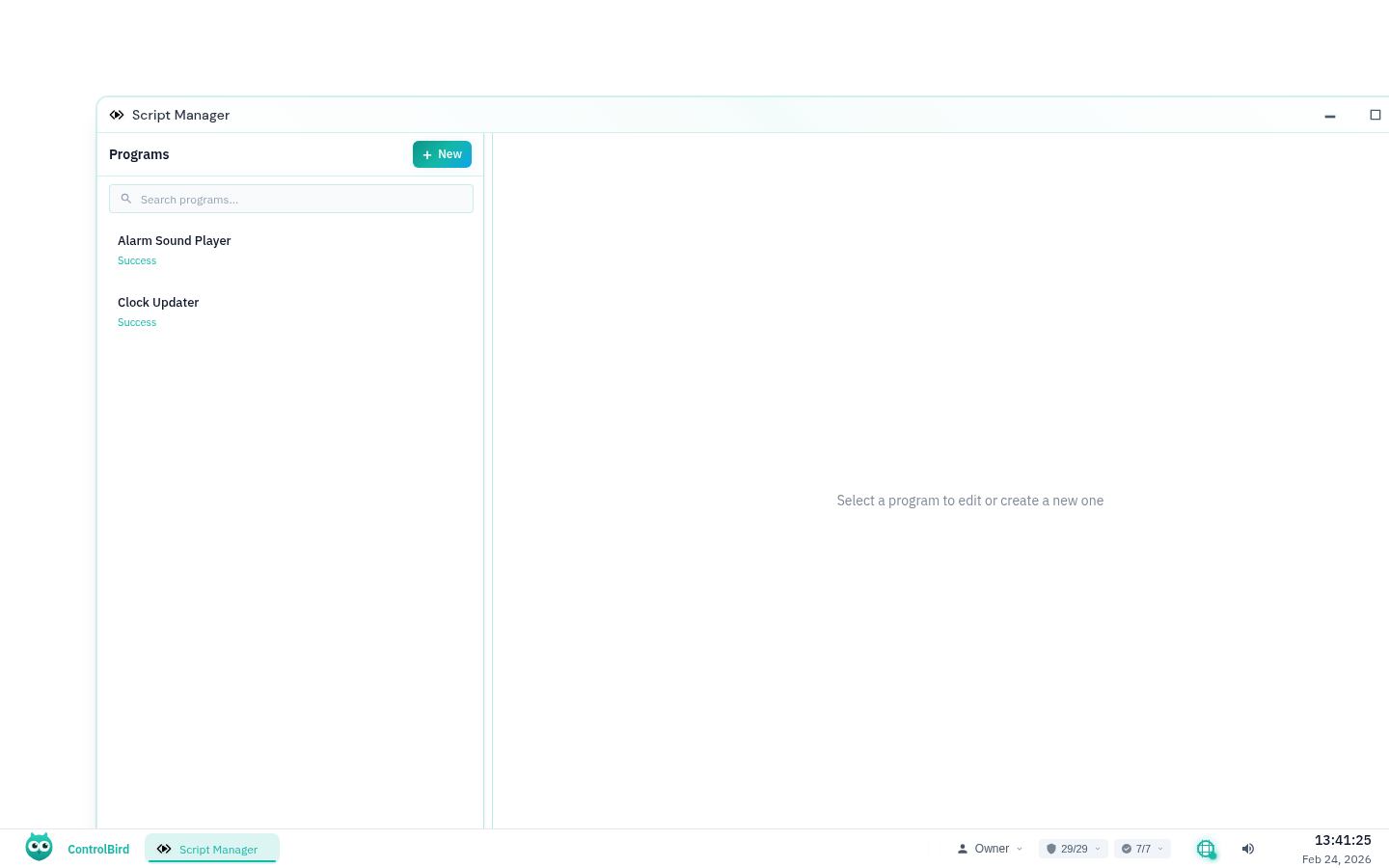
Creating Your First Script
Let's create a script that calculates a derived value: converting temperature from Celsius to Fahrenheit.
- Click + New Program in the toolbar
- Enter a name: "Temperature Converter"
- Select the folder where the program entity will be created
- Click Create
The editor opens with a blank script. Enter the following code:
// Read the Celsius temperature from a sensor
const celsius = store.read('/Devices/TempSensor/Temperature');

// Convert to Fahrenheit
const fahrenheit = (celsius * 9/5) + 32;

// Write the result to a display field
store.write('/Dashboard/TemperatureF', fahrenheit);

console.log(`Converted ${celsius}°C to ${fahrenheit}°F`);
The Store API
Scripts interact with ControlBird through the store object. Here are the most common operations:
store.read(path)Read a field value. Returns the current value or null if not found.
const temp = store.read('/Devices/Sensor1/Temperature');store.write(path, value)Write a value to a field. The field must exist and accept writes.
store.write('/Devices/Thermostat/Setpoint', 72.5);store.exists(path)Check if an entity or field exists. Returns true or false.
if (store.exists('/Devices/OptionalSensor')) { ... }store.children(path)Get a list of child entity paths under a container.
const devices = store.children('/Devices');Console Logging
Use console.log() in your scripts for debugging. Output appears in the program's log, viewable from Script Manager. Use console.warn() and console.error() for different severity levels.
Triggering Scripts
Scripts can run in three ways:
On Change
Run whenever a specific field changes. Configure a Notification on the program that points to the source field.
On Schedule
Run at specific times using cron expressions. Well suited to periodic reports, daily calculations, or timed sequences.
Manual
Run on demand by clicking Execute in Script Manager, or triggered from a Rule Chain output.
Example: Smart Averaging
Here's a more practical example: averaging multiple temperature sensors and detecting if any are offline:
// Get all temperature sensors in the zone
const sensorPaths = store.children('/Zones/LivingRoom/Sensors');
const readings = [];
const offlineSensors = [];

for (const path of sensorPaths) {
  const temp = store.read(`${path}/Temperature`);
  const status = store.read(`${path}/Status`);

  if (status === 'Online' && temp !== null) {
    readings.push(temp);
  } else {
    offlineSensors.push(path);
  }
}

// Calculate average
if (readings.length > 0) {
  const average = readings.reduce((a, b) => a + b, 0) / readings.length;
  store.write('/Zones/LivingRoom/AverageTemp', average.toFixed(1));
}

// Report offline sensors
if (offlineSensors.length > 0) {
  console.warn(`Offline sensors: ${offlineSensors.join(', ')}`);
  store.write('/Zones/LivingRoom/SensorWarning', true);
} else {
  store.write('/Zones/LivingRoom/SensorWarning', false);
}
Querying Historical Data
Scripts can also query the Historian for time-series analysis:
// Query last 24 hours of energy readings
const endTime = Date.now();
const startTime = endTime - (24 * 60 * 60 * 1000);

const records = historian.query({
  entity: '/Devices/PowerMeter',
  field: 'Energy_kWh',
  start: startTime,
  end: endTime
});

// Calculate daily consumption
const firstReading = records[0]?.value ?? 0;
const lastReading = records[records.length - 1]?.value ?? 0;
const consumption = lastReading - firstReading;

store.write('/Reports/DailyEnergy', consumption);
console.log(`Daily energy consumption: ${consumption} kWh`);
Performance Considerations
Scripts run on the node's compute resources. Avoid infinite loops, excessive reads in tight loops, or very large historian queries. For complex processing, consider breaking work into smaller scheduled chunks.
Debugging Scripts
When things don't work as expected:
Click the program in Script Manager and view the Log tab. All console output and errors appear here.
Use the Database Browser to confirm entity paths match exactly what your script references.
Start with simple reads/writes and add complexity. Comment out sections to isolate issues.
Ensure the program has write access to target fields. Check Permissions Manager if writes fail silently.
Troubleshooting
My script runs but values aren't updating
- Check the path: Paths are case-sensitive and must match exactly
- Check field types: Writing a string to a numeric field will fail
- Check read-only: Some fields (like sensor inputs) can't be written
- Check permissions: The program may lack write access
Script shows "Execution Error" with no details
Add try/catch blocks around your code to capture and log errors:
try {
  // Your code here
} catch (e) {
  console.error('Script failed:', e.message);
}
How do I make a script run automatically?
Add a Schedule to run the program on a cron expression, or add a Notification so the program runs whenever a source field changes. Both are configured on the program in Script Manager.