Step 21: Scale with Multiple Nodes
Deploy additional nodes and understand how data stays in sync across your environment.
Full reference
For complete details, field tables, and limitations, see the Scaling & Multi-Node reference.
When to Add More Nodes
A single node can handle thousands of data points with sub-millisecond latency. But as your deployment grows, you may want additional nodes for:
Geographic Distribution
Place nodes close to devices for lower latency: one in the factory, one in the cloud
High Availability
Run redundant nodes so operations continue even if one goes offline
Workload Isolation
Dedicate nodes to specific protocols or device groups for better resource management
Adding a Second Node
From the Control Plane portal, navigate to your environment and click "Add Node". The process is the same as deploying your first node.
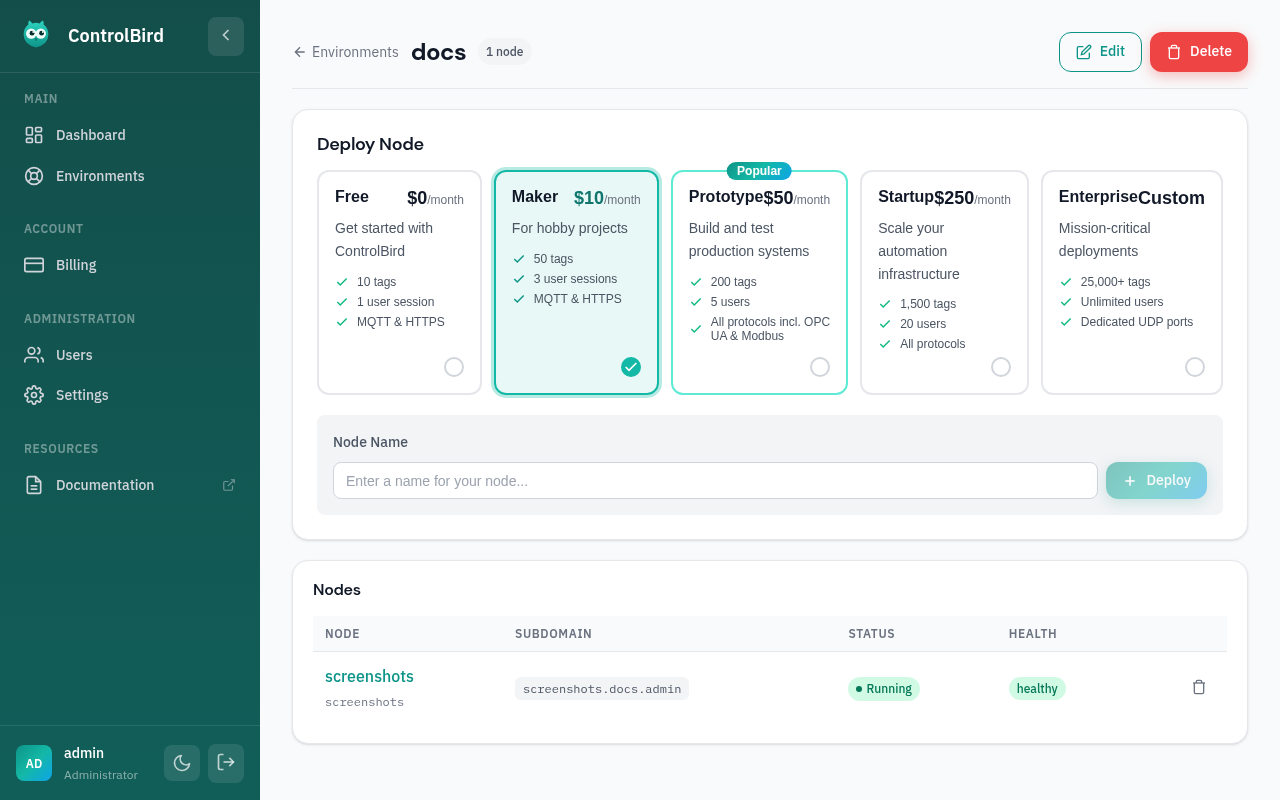
- Select a subscription tier for the new node
- Choose a unique node name (e.g.,
production-node-2) - Select the deployment region
- Click Deploy
Once the node reaches "Running" status, it automatically discovers other nodes in the environment and establishes peer connections.
How Nodes Discover Each Other
ControlBird uses a peer-to-peer architecture: nodes connect directly without a central coordinator. When a new node joins:
No Configuration Required
Nodes in the same environment discover each other automatically. You don't need to configure IP addresses or connection strings; the Control Plane handles this.
What Gets Synchronized
When nodes sync, they share everything in the Store:
Leader Election
In a multi-node environment, one node takes the role of leader. The cluster chooses the leader automatically, with no configuration on your part, and every node agrees on the same choice.
Leadership coordinates certain operations, but every node accepts reads and writes. When the leader goes offline, another node takes over automatically.
Automatic Failover
If the leader node goes down, followers detect the disconnection within seconds and elect a new leader. No manual intervention required.
Common Multi-Node Topologies
Edge + Cloud
Most CommonDeploy an edge node in your facility for low-latency device communication. A cloud node provides remote access and data aggregation.
Redundant Pair
High AvailabilityTwo nodes in the same location, fully synchronized. If one fails, the other continues without data loss.
Multi-Site
EnterpriseOne node per physical site, all syncing to a central cloud node for unified monitoring and reporting.
Monitoring Sync Health
Each node displays its peer connections and sync status in the platform UI:

Writing to Multiple Nodes
You can connect to any node in the environment, and writes are broadcast to all peers automatically. This means:
- Devices can connect to the nearest node for low latency
- Operators can access any node and see the same data
- Automations run on all nodes but coordinate via the Store
Eventual Consistency
In rare cases of network partitions, nodes may temporarily have different values. When connectivity is restored, the latest write (by timestamp) wins. For most applications, this happens so fast it's imperceptible.
Troubleshooting
Nodes aren't discovering each other
- Verify both nodes are in the same environment
- Check that both nodes show "Running" status in the portal
- Network firewalls may block peer connections, so contact support if this persists
Sync seems slow
Initial sync transfers the entire Store snapshot. For large deployments with many entities, this can take a few seconds. Once synced, incremental updates are near-instant.
Data differs between nodes
- Check sync status in the platform, since one node may still be syncing
- If nodes were partitioned, the latest timestamp wins on reconnect
- For persistent discrepancies, restart the newer node to force a full resync
Which node should devices connect to?
Connect devices to the node with lowest network latency, typically an edge node in the same facility. The data replicates to the other nodes automatically. For redundancy, configure devices with failover to a secondary node.