Step 11: User Management & Permissions
Control who can access your system and what they can do.
Why Access Control Matters
As your ControlBird deployment grows, you'll want to bring in team members: operators who monitor, engineers who configure, and administrators who manage the system. Each role needs different levels of access.
The Permissions Manager app lets you create users, assign roles, and define exactly what each person can see and do.
Opening Permissions Manager
Click the ControlBird logo in the taskbar and select Permissions Manager. You'll see tabs for Users, Roles, Permissions, and Sessions.
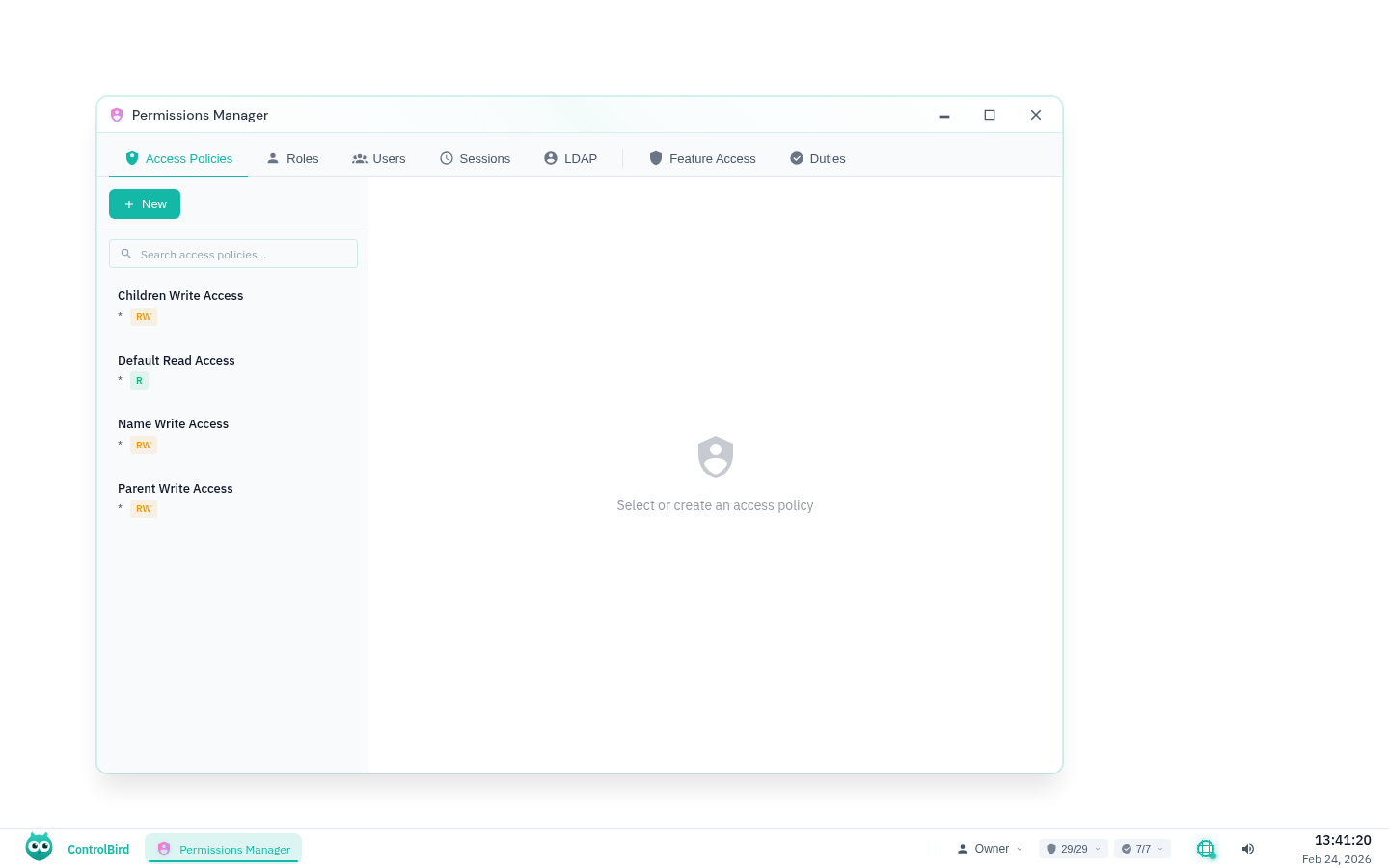
Understanding Roles
ControlBird comes with built-in roles that cover common use cases:
- See all data in real-time
- View historical trends
- See alarm status
- Cannot make any changes
- All Viewer permissions
- Acknowledge alarms
- Write to control points
- Shelve/unshelve alarms
- All Operator permissions
- Configure devices
- Create automations
- Modify historian settings
- All Engineer permissions
- Manage users and roles
- Configure system settings
- Full access to all resources
Creating a New User
To add a team member to your system:
- Click the Users tab in Permissions Manager
- Click + New User in the toolbar
- Fill in the user details:
- Username: Unique login identifier
- Display Name: Friendly name shown in the UI
- Email: For notifications and password recovery
- Authentication: Native (password) or OAuth provider
- Assign one or more roles from the dropdown
- Click Create to save
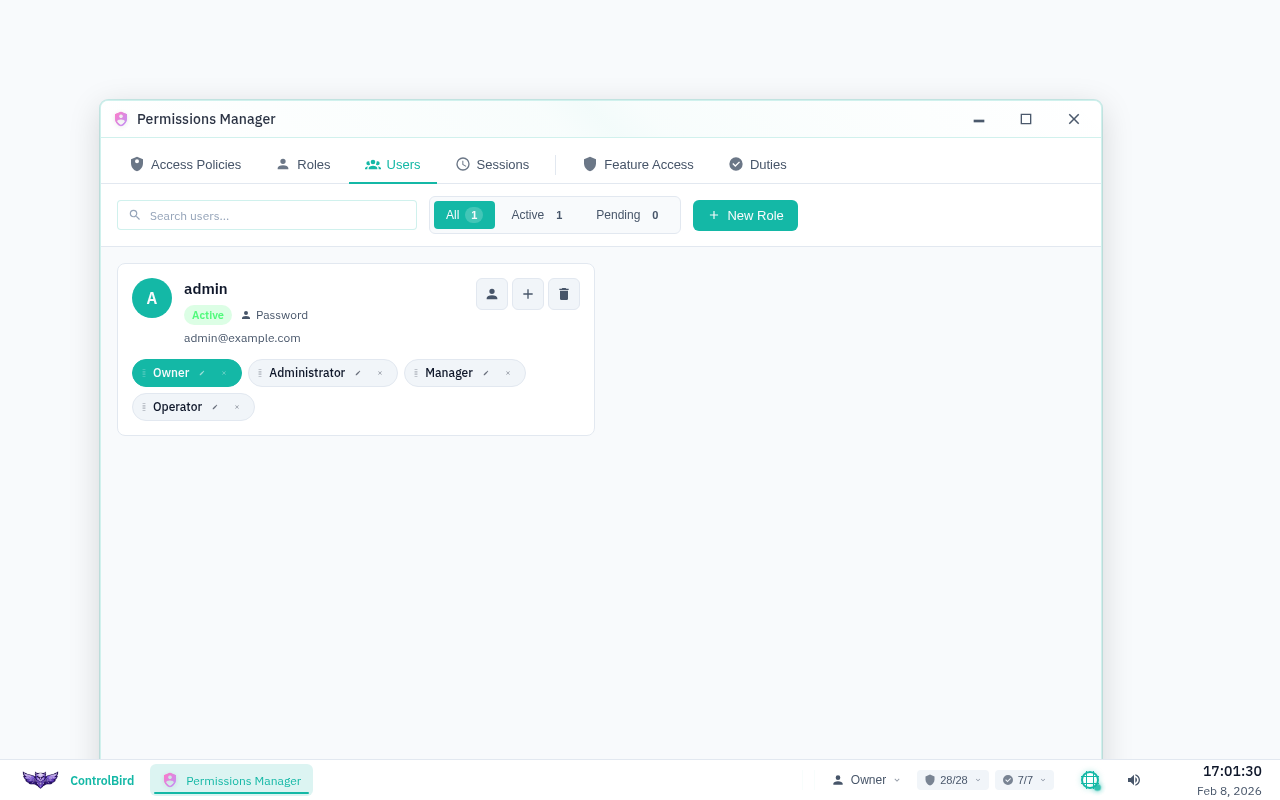
Authentication Options
ControlBird supports multiple authentication methods: native passwords, OAuth (Google, Microsoft, GitHub), and LDAP for enterprise directory integration. Choose based on your organization's identity management.
Assigning Roles
Users can have multiple roles. Permissions are additive: if a user has both Viewer and Operator roles, they get all permissions from both.
To modify a user's roles:
- Select the user in the list
- In the details panel, click Edit Roles
- Check or uncheck roles as needed
- Click Save
Creating Custom Permissions
Sometimes the built-in roles don't fit your needs. You can create fine-grained permissions that control access to specific resources:
For example, you might create a permission that allows:
- HVAC Technician → Write →
/Devices/HVAC/** - Night Shift → Read Only →
/Devices/**(after hours) - Guest → Read Only →
/Dashboard/Public/**
Wildcard Patterns
Use * to match any single segment and ** to match any depth. For example, /Devices/Floor1/* matches direct children, while /Devices/Floor1/** matches all descendants.
Session Management
The Sessions tab shows all active user sessions. This is useful for:
- Seeing who is currently logged in
- Revoking access immediately if needed
- Auditing login patterns
Best Practices
Roles are easier to manage and audit than per-user permissions.
Give users only the permissions they need for their job function.
As team members change roles, update their access accordingly.
Ensure you're never locked out if one admin is unavailable.
Troubleshooting
A user can't see data they should have access to
Check these common causes:
- Role assignment: Verify the user has the correct roles
- Resource path: Check if the permission covers the entity path
- Session refresh: User may need to log out and back in after role changes
- Conflicting rules: A more specific deny rule may be overriding
I locked myself out of admin access
If you've accidentally removed your own admin role, another admin must restore it. If no admins remain, contact ControlBird support for emergency access recovery.
OAuth login isn't working
- Verify the OAuth provider is configured in System Settings
- Check that the user's email matches an existing account
- Ensure your OAuth app has the correct callback URL