Step 2: Create Environment
Organize your ControlBird nodes with logical environments.
Full reference
For complete details, field tables, and limitations, see the Cloud Management reference.
What is an Environment?
An environment is a logical grouping for your ControlBird nodes. Environments help you organize nodes by purpose, location, or project, much like how you might organize smart home devices by room or IoT gateways by site.
Typical Environment Patterns
By Stage
- Production
- Staging
- Development
By Location
- Home
- Office
- Warehouse
By Project
- Smart Greenhouse
- Solar Monitor
- Security System
Viewing Your Environments
From the dashboard, navigate to "Environments" in the sidebar. If this is your first time, you'll see an empty list with a prompt to create your first environment.
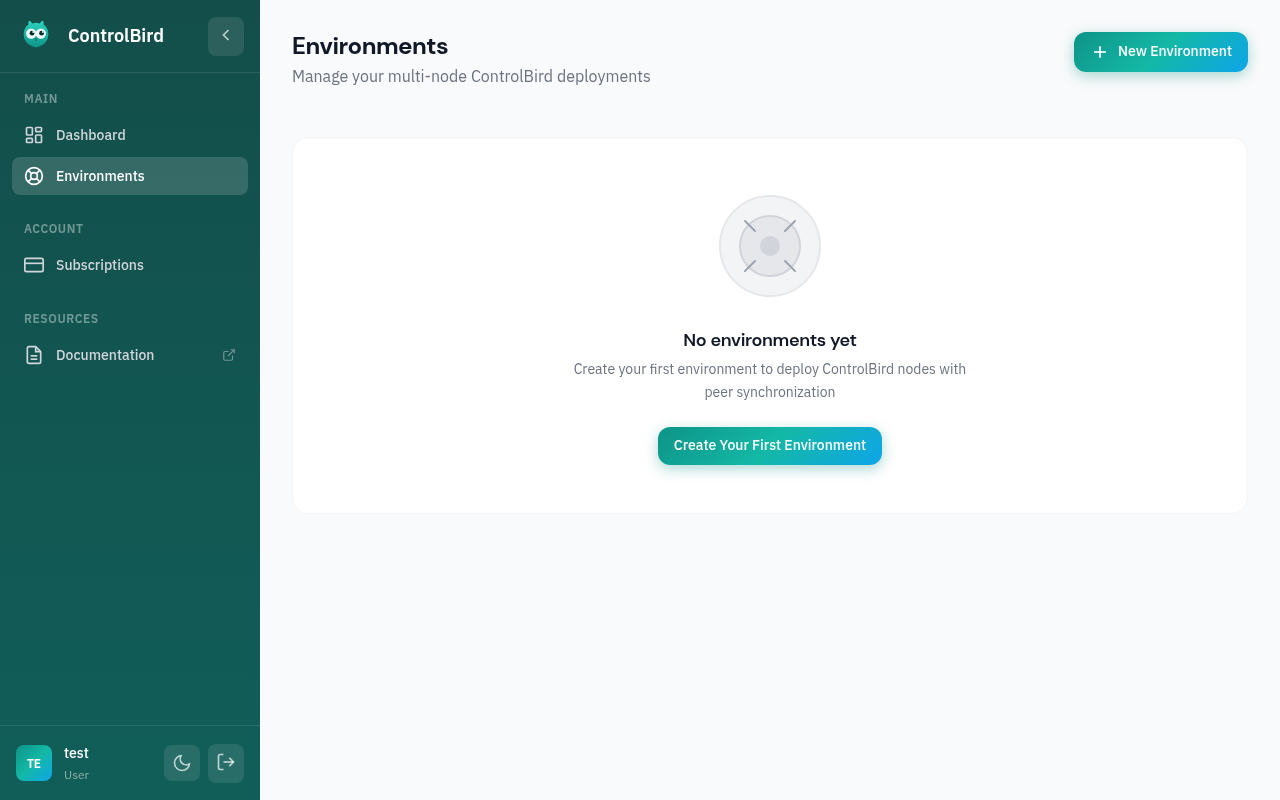
Creating Your First Environment
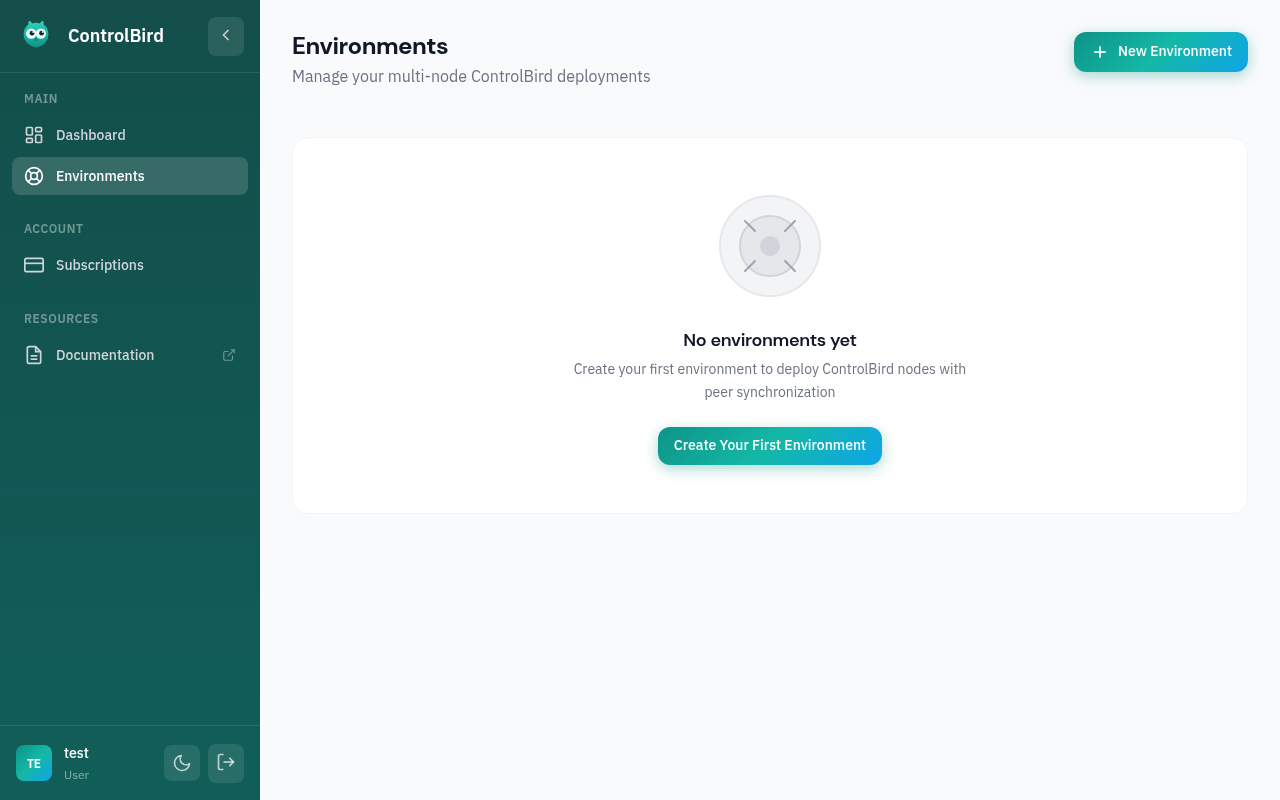
Click the "New Environment" button to open the creation dialog.
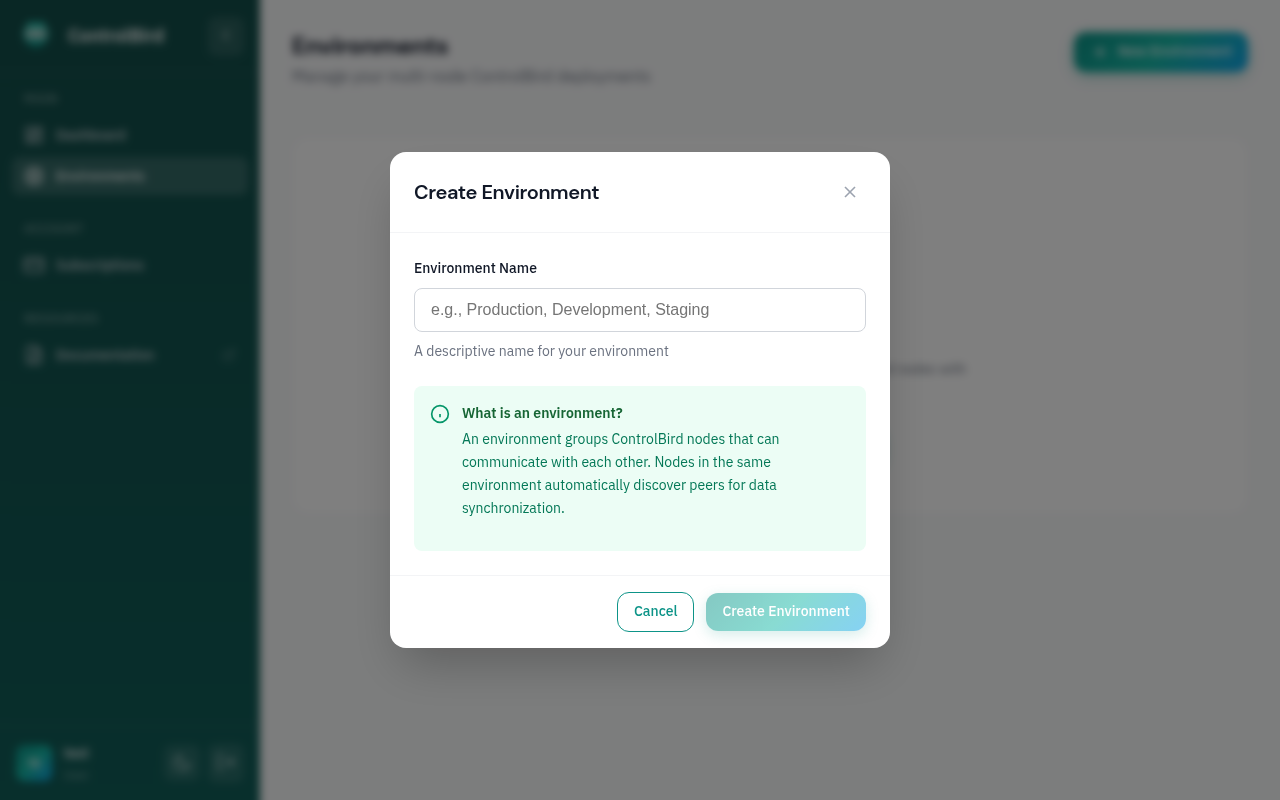
Environment Configuration
Fill in the environment details:
| Field | Description | Example |
|---|---|---|
| Name | A descriptive name for your environment | My Home, Lab, Production |
| Description | Optional notes about the environment's purpose | Primary smart home hub |
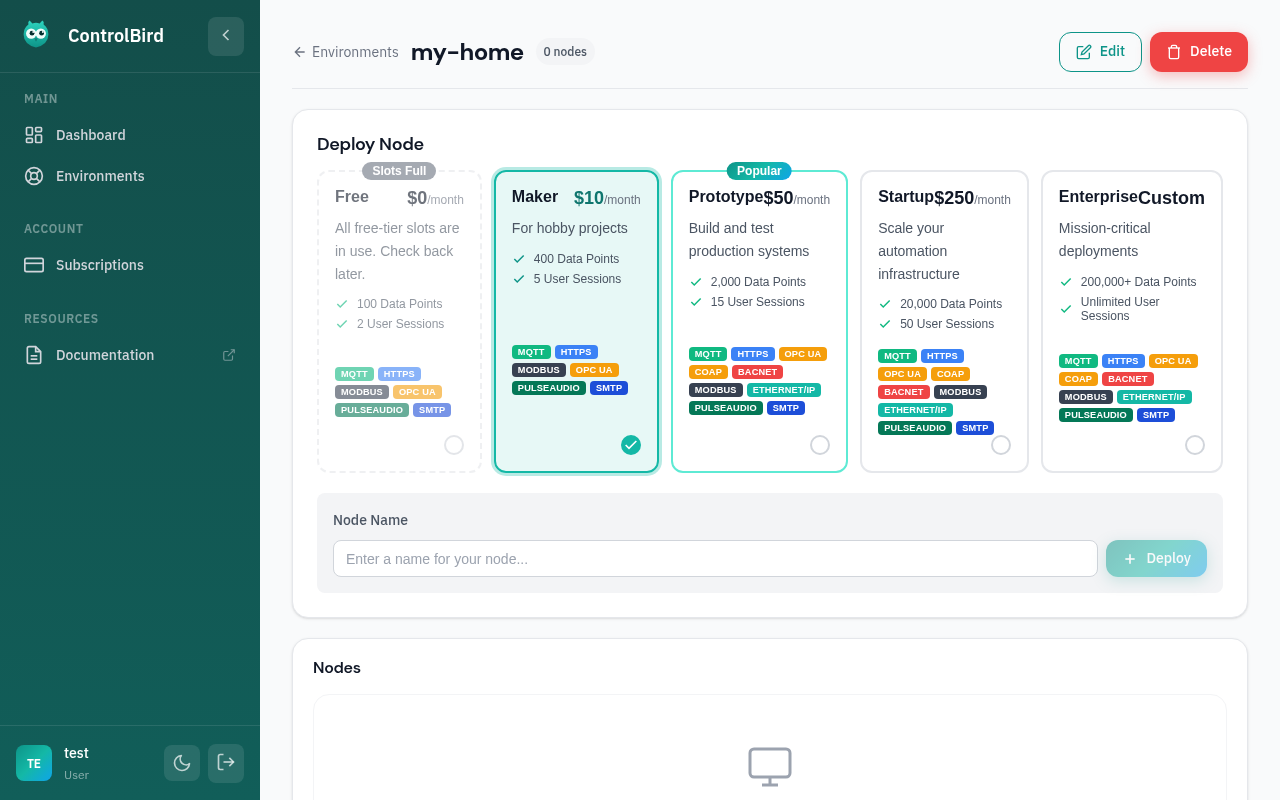
Environment Created
After creating the environment, you'll see it in your environments list. Click on the environment to access its detail page, where you can:
- Deploy new ControlBird nodes
- View existing nodes and their real-time status
- Manage environment settings and access control
Multiple Environments
You can create as many environments as you need. Each environment is isolated, so you can safely test configurations in a development environment before deploying to production.
Troubleshooting
I can't find the Environments page
The Environments section is in the main sidebar on the left side of the dashboard. If your sidebar is collapsed, click the menu icon to expand it. Look for the folder or grid icon labeled "Environments".
What's the difference between an environment and a node?
Think of it like folders and files:
- Environment: A folder that groups related nodes together (like "Home" or "Office")
- Node: An actual running ControlBird instance that connects to your devices
You can have multiple nodes in one environment, but each node belongs to exactly one environment.
Can I rename or delete an environment?
Yes! Click on the environment to open its detail page, then click the settings icon (gear) to access options for renaming or deleting. Note: an environment that still contains nodes can only be deleted once you move or delete those nodes first.