Step 6: The Database Browser
Learn to navigate, view, and edit your data in real-time.
Understanding ControlBird's Data Model
Everything in ControlBird is an entity: devices, sensors, settings, even folders. Entities are organized in a tree, similar to files and folders on your computer. Each entity has fields that hold its data: a thermostat entity might have fields for current temperature, setpoint, and mode.
Key Concepts
- Entity
- Any object in the system: a device, sensor, folder, or configuration item
- Field
- A piece of data belonging to an entity (like "Temperature" or "Status")
- Entity Type
- The template that defines what fields an entity has (like "Thermostat" or "MotionSensor")
Opening the Database Browser
Click the ControlBird logo in the taskbar and select Database Browser. This is your primary tool for exploring and editing data.

The Interface
The Database Browser has three main areas:
Navigate your entities in a hierarchical view. Click arrows to expand containers.
View and edit fields for the selected entity. Shows field names, types, and current values.
Search, filter by entity type, and reach common actions.

Navigating the Tree
The tree shows your entity hierarchy. Here's how to navigate:
- Click an arrow (▶) to expand a container and see its children
- Click an entity name to select it and view its details
- Double-click to expand and select in one action
- Right-click for context menu options (create, rename, delete, copy path)
Keyboard Navigation
Use arrow keys to navigate the tree quickly. Press Enter to select, Right Arrow to expand, and Left Arrow to collapse.
Reading Entity Details
When you select an entity, the details panel shows all its fields. Each row displays:
| Column | What It Shows |
|---|---|
| Field Name | The name of the field (e.g., "Temperature", "Status", "Name") |
| Value | The current value, updated in real-time |
| Type | The data type (see below) |
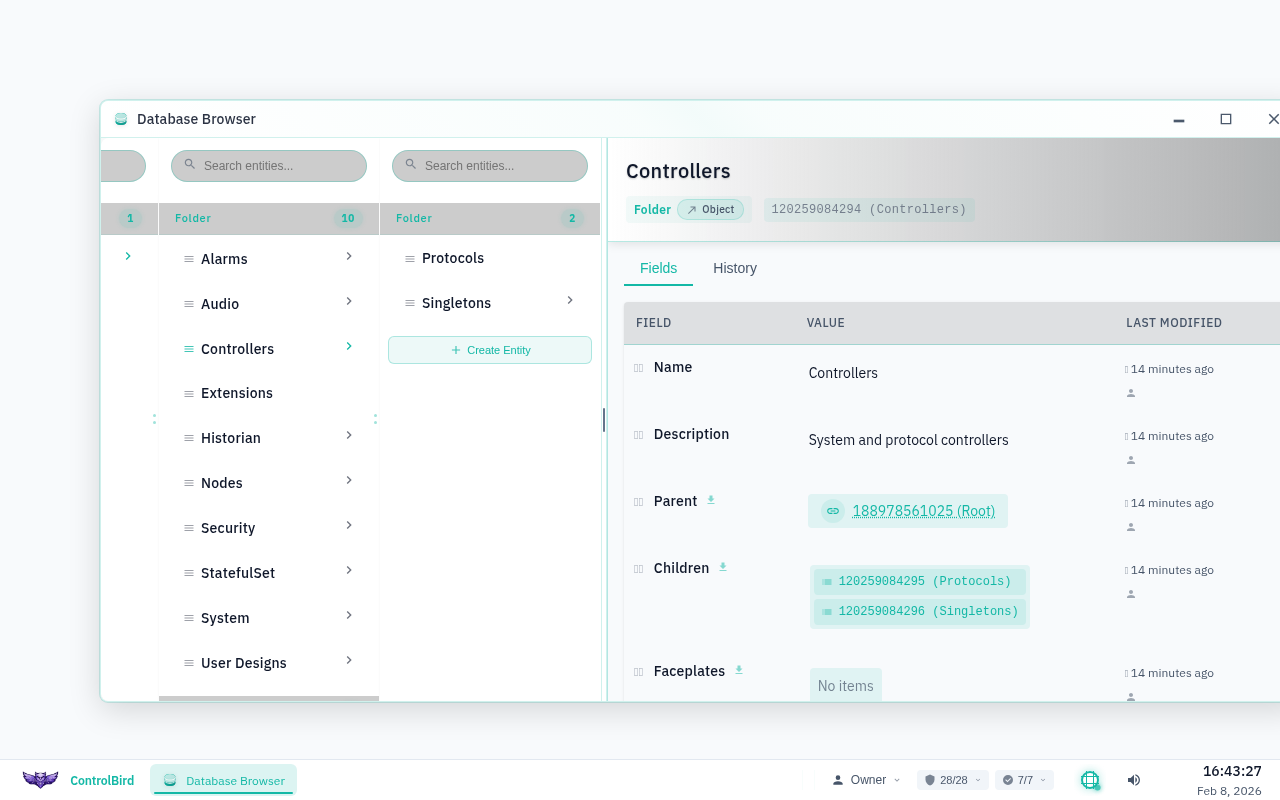
Common Data Types
You'll encounter these field types throughout ControlBird:
Editing Values
Most fields can be edited directly. To change a value:
- Click on the value you want to change
- For text/numbers: type the new value and press Enter
- For booleans: click to toggle between true/false
- For choices: select from the dropdown menu
Write Permissions
Some fields are read-only (like sensor readings from devices). You can only edit fields that accept input. Read-only fields will show a lock icon or won't respond to clicks.
Using Search
The search box in the toolbar helps you find entities quickly:
- Search by name: Type part of an entity's name
- Filter by type: Use the type dropdown to show only specific entity types
- Path search: Type a full path like
/Home/LivingRoom/
Real-Time Updates
ControlBird uses a reactive data model. When a device sends new data, you'll see the value change immediately in the Database Browser, with no refresh needed.
Watch for the subtle highlight animation on values when they change. This helps you spot which values are actively updating.
Update Frequency
How often values update depends on your device configuration. Some sensors report every second, others only when values change. You'll configure this when connecting devices.
Creating New Entities
You can create new entities directly in the Database Browser:
- Right-click on a container (folder) in the tree
- Select "Create Entity"
- Choose the entity type from the list
- Enter a name for your new entity
This is useful for creating organizational containers, manual data points, or configuration objects. Device entities are typically created through the Device Manager.
Troubleshooting
I can't find my device in the tree
If you've added a device but can't see it:
- Make sure you've expanded all parent folders, clicking the arrows to reveal nested items
- Use the search box at the top of the Database Browser to search by name
- Check the Device Manager to confirm the device was created successfully
- New devices may take a few seconds to appear, so try refreshing the tree
Values aren't updating in real-time
Real-time updates require an active connection. Check:
- The connection indicator in the taskbar should show "Connected" (green)
- Your device must be actively sending data, so check its status in Device Manager
- Some values only update when they change, so static values won't flicker
If you see "Disconnected", try refreshing the page or checking your internet connection.
How do I organize my devices into rooms or groups?
ControlBird uses a tree structure for organization. To create a custom hierarchy:
- Right-click in the tree to create new folders (called "containers")
- Drag and drop devices between folders to reorganize them
- Name folders by room (Living Room), type (Sensors), or any scheme that works for you