Step 18: Customize Appearance
Personalize your ControlBird interface with custom themes and branding.
Full reference
For complete details, field tables, and limitations, see the Themes & White-Labeling reference.
Make It Yours
ControlBird's visual appearance is fully customizable through the Theme Manager. Whether you prefer dark mode for late-night monitoring, need to match corporate branding, or want distinct color schemes for different environments, themes make it possible.
Opening Theme Manager
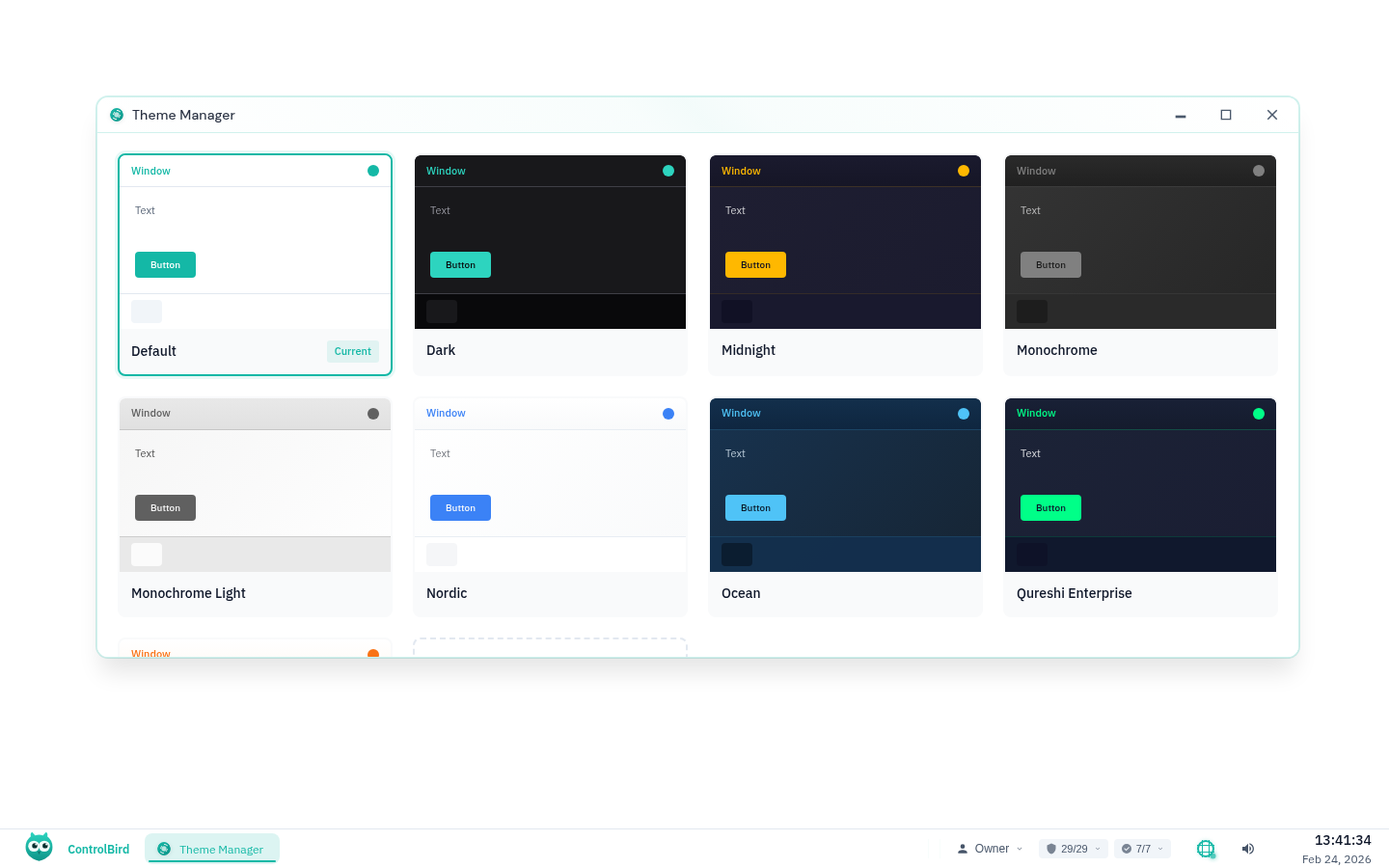
Click the ControlBird logo in the taskbar and select Theme Manager. You'll see a grid of available themes with live previews.
Applying a Theme
To switch themes:
- Browse the theme cards to preview different options
- Click on any theme to apply it instantly
- The interface updates in real-time, with no page reload needed
- Your selection is automatically saved to your user profile
Theme Persistence
Your selected theme persists across sessions and devices. Log in from anywhere and your preferred appearance follows you.
Built-in Themes
ControlBird includes several professionally designed themes:
Dark theme with amber accents. Easy on the eyes for control room environments.
Deep blue with cyan highlights. Professional look for industrial settings.
Clean light theme with blue accents. Great for bright office environments.
Warm gradient palette. Comfortable for extended viewing sessions.
Grayscale dark theme. Minimizes distraction from colorful data displays.
Creating Custom Themes
Want something unique? Create your own theme:
- Click the + Create Theme card in Theme Manager
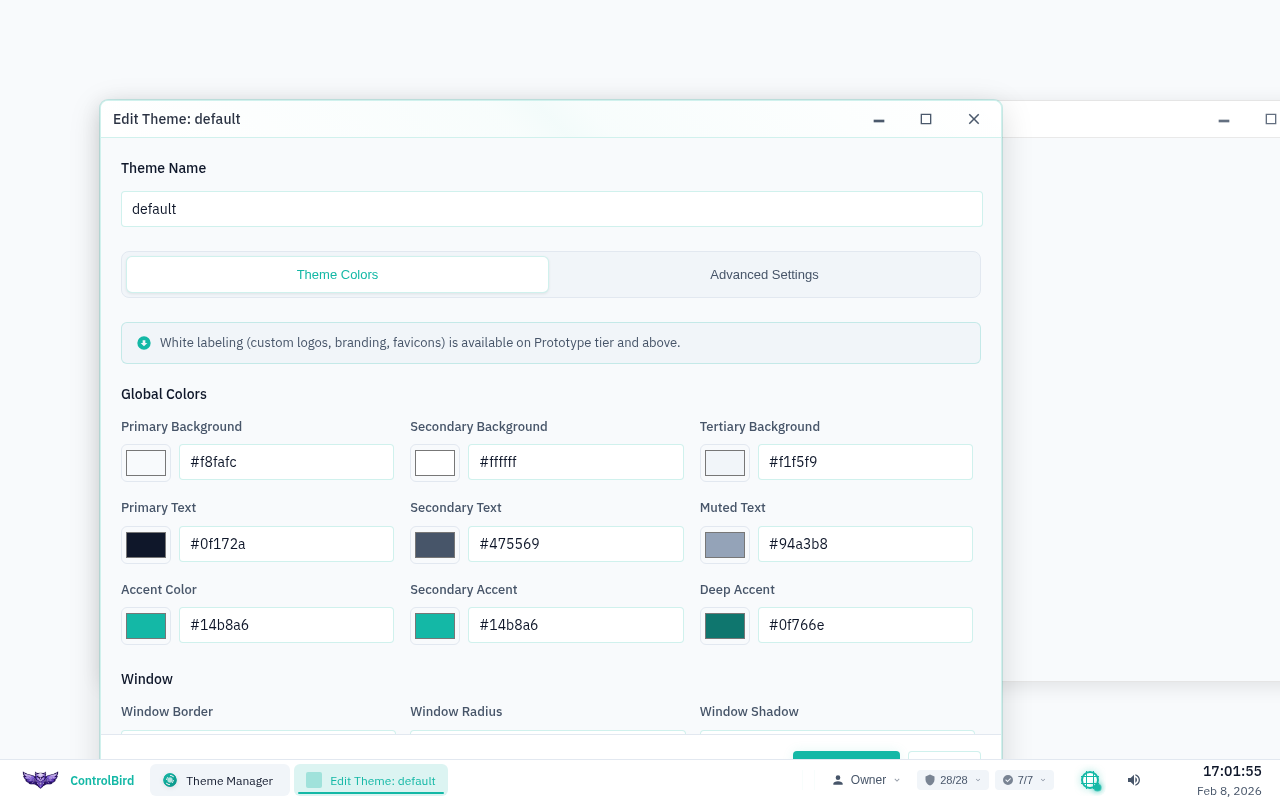
- The Theme Editor opens with your current theme as a starting point
- Customize colors, fonts, and effects
- Preview changes in real-time
- Save your theme with a custom name
Theme Editor Sections
The Theme Editor organizes settings into logical groups:
Global Colors
Primary backgrounds, text colors, accent shades, and borders that apply everywhere.
Window & Taskbar
Title bar colors, window borders, taskbar appearance, and button styles.
Typography
Font families, sizes, weights, and line heights for text throughout the interface.
Login Screen
Background, input fields, and button styling for the login page.
Effects
Shadows, transitions, hover effects, and animation settings.
Color Customization
Each color setting provides multiple ways to specify values:
Live Preview
As you adjust colors, the entire interface updates immediately. No need to save and reload: you see exactly how your changes look in context.
Theme Use Cases
Reduce eye strain during 24/7 operations. Dark backgrounds with high-contrast data.
Matches bright office environments. Professional appearance for client demos.
Different themes for production vs staging. Visual cues prevent accidental changes.
White Labeling
Cloud Edition Feature
White labeling is available in the Cloud edition. The theme customization features above (colors, dark mode, wallpaper) are fully available in CE.
Higher-tier licenses include white labeling: the ability to fully rebrand ControlBird with your organization's identity. This is ideal for system integrators, OEMs, and enterprises who want a fully branded experience.
Access white labeling options in the Theme Editor's White Labeling tab:
Replace ControlBird name with your company name and tagline throughout the interface.
Upload your logo as SVG, image URL, or custom HTML. Appears in the title bar, login screen, and start menu.
Custom title, subtitle, and background for the login page. First impressions matter.
Point help links to your own documentation and support portals.
Custom browser tab icon for complete brand consistency.
Display your own copyright notice in the footer and about screens.
System Integrator Benefit
White labeling lets you deliver ControlBird-powered solutions under your own brand. Your customers see your company identity throughout, with no mention of the underlying platform.
System Default Theme
Administrators can set a system-wide default theme that applies to new users and the login screen:
- In Theme Manager, hover over the desired theme
- Click the star icon to set as system default
- New users will see this theme on first login
- The login screen uses this theme's styling
Admin Only
Setting the system default theme requires administrator privileges. Regular users can only change their personal theme preference.
Editing Existing Themes
To modify a theme you've created:
- Hover over your custom theme in Theme Manager
- Click the edit (pencil) icon
- Make your changes in the Theme Editor
- Click Save to update the theme
Built-in themes cannot be edited, but you can create a copy and customize it.
Deleting Themes
To remove a custom theme:
- Hover over the theme card
- Click the delete (trash) icon
- Confirm the deletion
If users were using the deleted theme, they'll revert to the system default.
Troubleshooting
Theme changes aren't saving
- Ensure you click Save in the Theme Editor before closing
- Check that you have write permissions for your user profile
- Try refreshing the page and applying the theme again
Colors look different than expected
- Monitor calibration affects color perception, so verify on multiple displays
- Some colors may blend with others, so check contrast ratios
- Browser extensions can modify page colors, so try disabling them temporarily
Can't find the Create Theme button
The ability to create themes may be restricted by your administrator. Contact your system admin to enable theme creation for your role.
Login screen uses wrong theme
The login screen uses the system default theme, not your personal preference. Ask an administrator to set the appropriate system default.